What Is Clash?
Put simply, Clash is a traffic routing program that runs locally on your computer or phone. It doesn't provide any nodes itself — instead, it routes your network requests to different "exits" (i.e. nodes) based on rules you define: traffic that should go through a proxy does, traffic that should connect directly does, and ad requests can be blocked outright.
You can think of the whole setup as three pieces working together:
-
ClientThe app installed on your device that handles sending/receiving traffic and gives you a UI to work with — e.g. Clash Verge Rev or Clash for Windows.
-
SubscriptionA link provided by your service provider that bundles together a number of "nodes" (exits); the client downloads it and automatically generates a config.
-
RulesThe logic that decides "which traffic goes through which node" — subscriptions usually come with a ready-to-use set of rules.
Tying these three pieces together — installing the client, importing the subscription, and turning on the proxy — is everything this guide covers below. Don't worry if you don't recognize a term; there's a glossary at the end you can check anytime.
Before You Start
You'll only need two things for the whole process — make sure you have both ready:
-
The Clash Client InstallerMatching your operating system. If you haven't downloaded it yet, head to the download page and pick the recommended one.
-
A Subscription LinkProvided by your service provider — a URL that looks something like
https://example.com/api/v1/sub?token=xxxx, containing all your node information. If you don't have one, you'll need to sign up with a provider first.
It's also worth double-checking these two things — they'll save you troubleshooting time later:
-
Your system clock is set to sync automaticallyA large time offset can cause TLS handshakes to fail, making every node show a timeout. Most desktop systems have "set time automatically" on by default — just confirm it hasn't been changed.
-
No other proxy software is running at the same timeMultiple proxy tools fighting over the system proxy settings will conflict with each other — quit any other VPN/proxy tools before installing.
Your subscription link is basically your account credential — don't share it with anyone, and don't paste it into public group chats or forums. If it ever leaks, contact your provider to reset it right away.
1Download and Install the Client
Head to the download page and pick your platform. The page will detect your OS automatically and suggest a version — just follow the "Recommended" label. Installation varies slightly by platform:
- Windows: Double-click the exe installer and click through. We recommend right-clicking to "Run as administrator" the first time — you'll need this later to enable TUN mode.
- macOS: Unzip the gz file and drag the app into "Applications." If you see a "can't verify the developer" warning the first time you open it, go to System Settings → Privacy & Security and click "Open Anyway."
- Android: If you get an "unknown source" warning when installing the APK, just allow app installs from your browser in the system prompt.
- iOS: Purchase and download the client from the App Store.
- Linux: On Debian/Ubuntu-based distros, just run
sudo dpkg -i filename.deb; on other distros, download the core archive, extract it, and run it.
The first time you open it after installing, you should see a main window with a row of icons down the side (General / Proxies / Profiles / Connections / Logs, etc.). If it opens in English or the icons look off, that's fine — most clients let you switch the language to Chinese on the "General" page.
Won't open, or nothing happens when you double-click it? First check whether the installer downloaded completely (compare the file size against what's listed on the download page) — re-downloading an incomplete installer fixes most launch issues.
2Import a Subscription Link
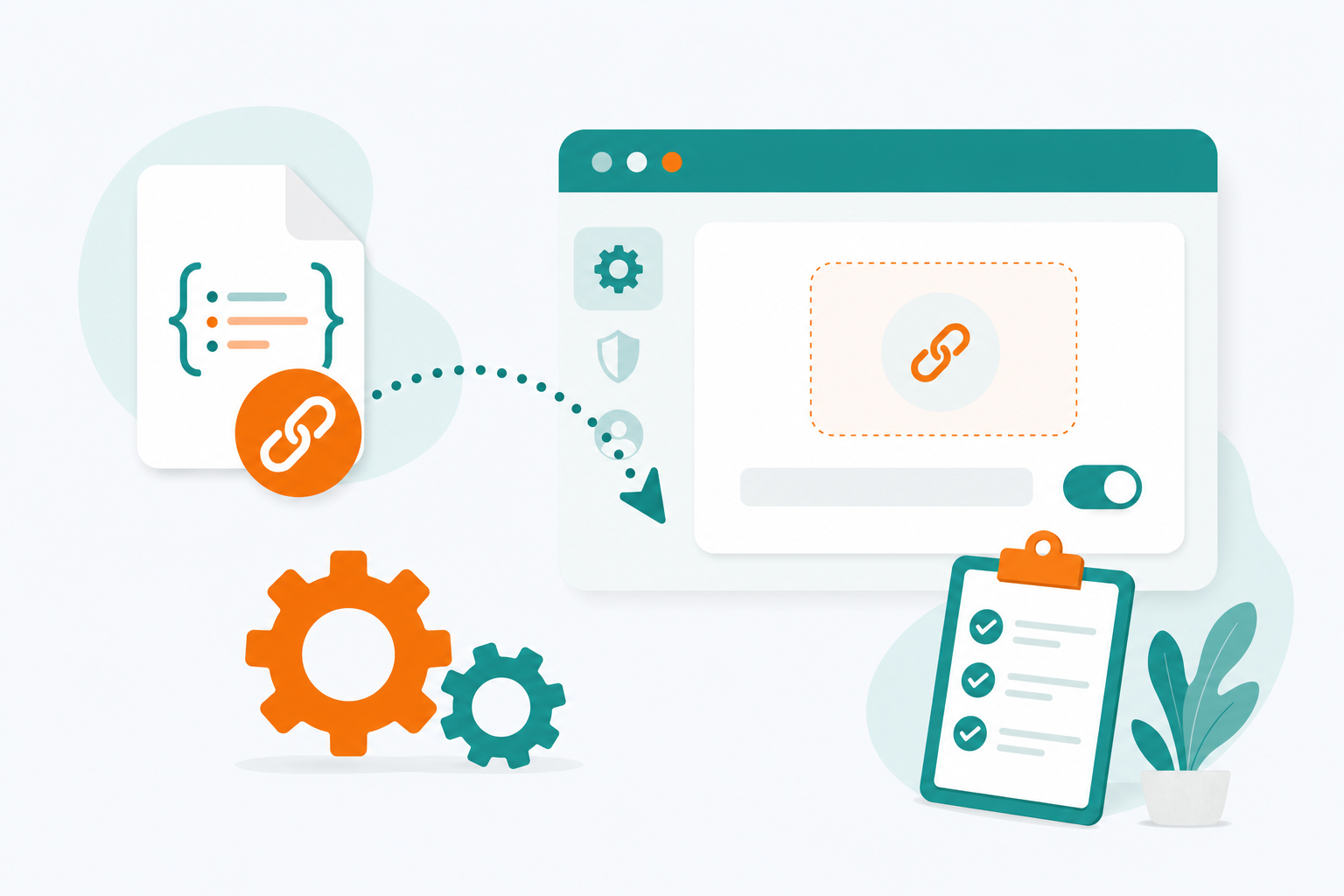
Open the client and go to the Profiles page in the sidebar:
- Copy the full subscription link your provider gave you;
- Paste it into the input box at the top of the Profiles page and click Download;
- Wait a few seconds — once a new profile card appears, the import succeeded. Click the card to select it.
While you're there, we recommend turning on auto-update in the profile card's settings (a 24-hour interval works fine) — that way you won't need to do anything manually when your provider changes nodes.
Once imported, switch to the Proxies page and you should see a list of nodes, something like this:
auto  url-test · Prioritizes lowest latency
├─ Hong Kong · IEPL Dedicated Line 01   32 ms
├─ Tokyo · BGP High-Speed 02    58 ms
├─ Singapore · Native 05      86 ms
└─ Los Angeles · CN2 GIA 03  142 ms
What's Actually Inside a Subscription Link
What you download is really a YAML config file, made up mainly of three parts: a list of proxies (server addresses, ports, passwords, etc. for each node), some proxy-groups (bundling nodes into "auto-select," "manual-select," and similar groups), and a full set of rules (routing rules). The client downloads and parses this file into the list you see in the UI — you don't need to edit it by hand.
No Subscription Link, Just a Local Config File?
In some cases your provider gives you a .yaml file instead of a link — the process is the same on the "Profiles" page: click the file icon next to "Import" and select the local file. It works exactly the same as pasting a link, except it can't auto-update — you'll need to re-import manually whenever the nodes change.
Troubleshooting Import Failures
- Make sure the link isn't truncated — it's easy to accidentally cut off the token parameter at the end when copying;
- Try again on a different network (like your phone's hotspot) to rule out local network interference with that domain;
- If the client shows a "config format error," it's most likely a temporary issue on your provider's end — reach out to them to confirm.
3Enable the Proxy and Choose a Mode

Go back to the General page and turn on the System Proxy switch. Then pick one of the three proxy modes:
Automatically routes traffic based on rules: domestic sites connect directly, foreign sites go through the proxy. Use this for everyday browsing.
All traffic goes through the proxy. Even domestic sites take a detour abroad, which can actually slow things down — only use this in special cases.
No traffic goes through the proxy at all — effectively the same as turning Clash off temporarily, useful when troubleshooting.
Finally, select the auto-select proxy group on the Proxies page (or manually pick a node with low latency), and you're all set.
How Rule Mode Decides "Which Way to Go"
Rules are matched one by one from top to bottom — the first match wins, and matching stops there. Here's an example using rules commonly found in subscriptions:
DOMAIN-SUFFIX,github.com,auto   # ① Domain ends with github.com → use proxy
GEOIP,CN,DIRECT                  # ② Destination IP is located in China → connect directly
RULE-SET,reject-ads,REJECT        # ③ Matches the ad rule set → block outright
MATCH,auto                       # ④ Nothing matched above → fall back to proxy
In other words: visiting GitHub matches rule ① and goes through the proxy; a request to a domestic site, whose IP is located in China, gets passed through directly at rule ②; and the final MATCH is a catch-all rule that guarantees any traffic not covered above still has somewhere to go. This logic is already built into your subscription — you don't need to adjust it for everyday use.
Advanced: TUN Mode & Proxy Groups
Basic usage wraps up at the previous step — this section is for anyone who wants to go a bit deeper. Feel free to skip it; it won't affect regular use.
System Proxy vs. TUN Mode
The system proxy changes your OS's proxy settings, which most browsers and regular apps respect — but a handful of programs (some games, command-line tools, certain built-in system services) don't read the system proxy and connect directly regardless. TUN mode instead creates a virtual network interface that takes over traffic at a lower level, in theory covering apps that slip past the system proxy.
Simple to set up, covers browsers and most apps, good enough for everyday use, and easy to turn off anytime.
Broader coverage, but requires extra permissions on Windows/macOS (administrator rights / a password prompt to authorize the virtual interface).
To enable it: find the TUN switch on the General page and turn it on. On Windows, you'll need to run the client as administrator; on macOS, the first time you enable it you'll be prompted for your password to install a network extension — just follow the prompts and allow it.
What Proxy Groups Are, and Which Type to Pick
A proxy group bundles multiple nodes into a single "selector" — the "auto-select" option you see on the Proxies page is actually a proxy group. The three most common types:
-
url-test (Automatic Speed Test)Tests the latency of every node in the group on a fixed interval and automatically switches to the fastest one — great for a set-and-forget setup.
-
fallback (Automatic Failover)Always uses the first available node, only switching to the next one if it fails — a good fit when stability matters more than speed.
-
load-balance (Load Balancing)Spreads different requests across multiple nodes — useful for multi-device, high-concurrency setups, though not something a typical single user needs day to day.
Subscriptions usually come with a few proxy groups already set up along these lines — just select one on the Proxies page. If you want to tweak things yourself, most clients let you edit the YAML directly under "Edit Profile" — save your changes and they take effect immediately, no need to restart the client.
Confirming It's Working
Pick either of these two methods:
-
Visit a Foreign Site DirectlyOpen YouTube or Google in your browser — if it loads normally, the proxy is working.
-
Check Your Exit IPVisit an IP lookup site — if the location shown matches your selected node's region (e.g. Hong Kong), your traffic is genuinely going out through that node.
-
Check the Connections ListThe client's "Connections" page lists every network request in real time, along with which rule it matched and which node it's using — this is the most direct place to look when something's wrong.
You can also watch the client's traffic graph while you're at it: if the upload/download rates are moving, traffic is passing through Clash. If the graph stays flat but pages still load, your browser might not be using the system proxy (e.g. it's using a separate proxy extension) — try disabling that extension and testing again.
FAQ
Getting a download failure or timeout when importing your subscription?
The subscription link itself may be blocked by your network. Try opening the link directly in your browser first — if it opens fine, the link is working, so go back to the client and try again a few times; if it doesn't open, contact your provider about switching to a different subscription domain.
All node latencies showing as Timeout?
First check that your system clock is accurate (an offset over 90 seconds can break the handshake for some protocols), then try switching nodes or updating your subscription. If only a few nodes are timing out, it's usually just those specific nodes having issues — try a different one.
Proxy is on, but the browser still can't reach foreign sites?
Check these in order: ① the system proxy switch is on; ② the current mode is Rule or Global, not Direct; ③ the selected node has normal latency. If all of that checks out, disable any browser proxy extensions (like SwitchyOmega) to avoid conflicts, or restart your browser.
What is TUN mode? Do I need to turn it on?
TUN mode uses a virtual network interface to take over all system traffic, covering apps that don't respect the system proxy (like some games or command-line tools). You don't need it for everyday browsing — if you do need it, just flip the TUN switch on the main page (requires administrator privileges on Windows).
Can I use the same subscription on my phone and computer?
Yes. A subscription link isn't tied to any one device — just import it once into the client on each device, and the nodes and rules will stay in sync. Note that the number of devices allowed online at once depends on your provider's policy.
Nodes disappeared or dropped in number after updating the subscription?
It's normal for providers to adjust their node list periodically — this is a change in the subscription content itself, not a problem with the client. Clicking "Update" again will usually pull the latest node list; if the count stays off for a long time, it's best to report it to your provider directly.
Can I import multiple subscriptions at once?
Yes — the profiles page supports importing multiple configs, though only one is "selected" and active at a time. To switch providers, just click the other profile card to select it; there's no need to delete the existing one.
Does running the proxy drain my phone's battery a lot?
Normal use doesn't add much battery drain — most of the overhead comes from automatic node speed testing (url-test's periodic probing). If battery life matters to you, increase the testing interval, or just turn off the system proxy switch when you're not using it.
Is it normal for the client to use a lot of memory/CPU?
The Clash core itself is very lightweight — unusually high usage is often caused by an oversized rule set or the log level being set to Debug. Set the log level back to Info/Warning and make sure you're not loading multiple large rule sets at once, and things should go back to normal.
Glossary
Here's a quick reference for the terms that came up earlier:
- Node
- An available proxy exit, usually labeled with a region (e.g. Hong Kong, Tokyo) and the protocol it uses.
- Subscription
- A link or file from your provider that the client downloads and uses to automatically generate your node and rule configuration.
- Proxy Groups
- A bundle of nodes treated as a single, switchable unit — like "auto-select."
- Rules
- The conditions that decide which proxy group (or direct connection, or block) a given network request should use, matched in order from top to bottom.
- Rule Provider
- A large, separately maintained list of rules (like an ad-domain database) that's referenced from your rules as an external file.
- System Proxy
- Changes your operating system's proxy settings so that any app respecting that setting automatically routes its traffic through Clash.
- TUN Mode
- Creates a virtual network interface that takes over traffic at a lower level, covering apps that don't respect the system proxy setting.
- Latency
- The time between the client sending a test request to a node and receiving a response — lower usually means a faster connection.
Further Reading
Once you've got the basics down, these guides will help you get even more out of Clash: